Officially Supported Models
| GL.iNET Routers | ASUS Routers |
|---|---|
| GL-MT3000 Beryl AX | TUF Gaming AX4200 |
| GL-MT6000 Flint 2 |
Supported Releases
OpenWrt 24.10 series
Installation
Install on GL.iNet Routers
Stage 1 of 5- Download OpenWrt 24 based Firmware
By default, GL.iNet routers come with firmware based on OpenWrt v23, while we require v24.
Download the GL.iNET firmware, version 4.8.3, using the following links:
GL-MT3000 Beryl AX
GL-MT6000 Flint 2
Stage 2 of 5- Upgrade Firmware
-
Login to your router admin panel. The default IP address is located on a label on the bottom of the router. Then in your browser access http://<IP address>
-
Browse to System > Upgrade > Firmware Local Upgrade.
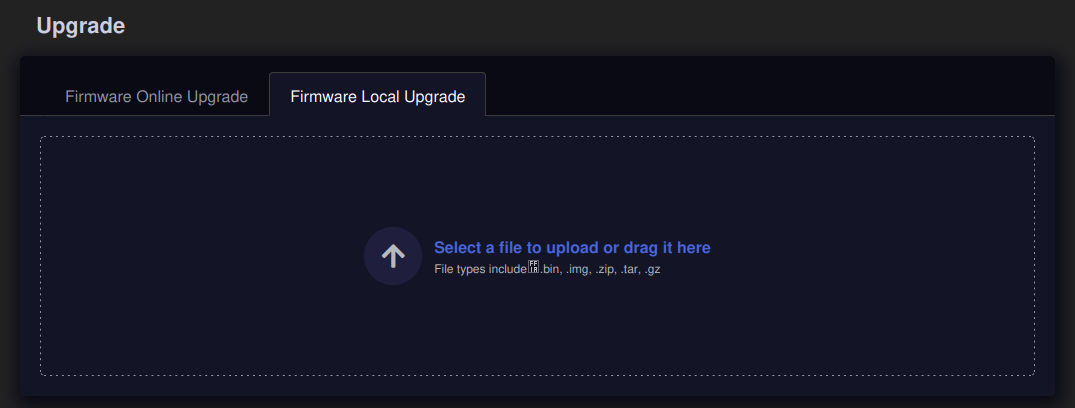
- Select the downloaded firmware file and follow the instructions.
Stage 3 of 5- Change Admin Panel Ports
-
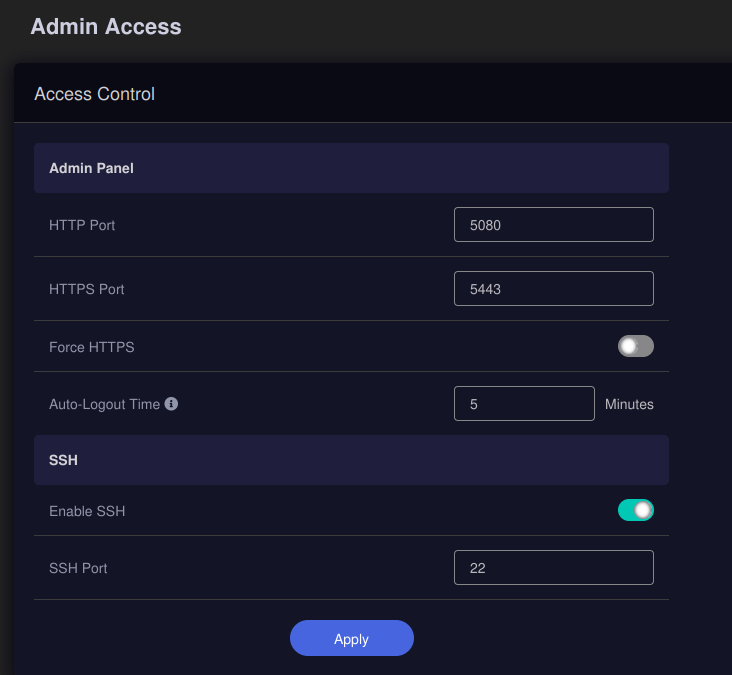
Browse to System > Security
-
Under Access Control, make sure the ports are all set to something other than 80 or 443 (the screenshot shows an example of reasonable values), and click Apply.
-
The webserver will restart and a new login will be required (the page may need to be refreshed to show the login).
-
Going forward, you will need to use the new port when logging into your router admin panel. For example if you used the port numbers in the above screenshot, and if the IP of your router happens to be 192.168.8.1, then you would now have to use http://192.168.8.1:5080 when logging in.
Stage 4 of 5- Add adam:ONE® Feed
-
Browse to Applications > Plug-ins
-
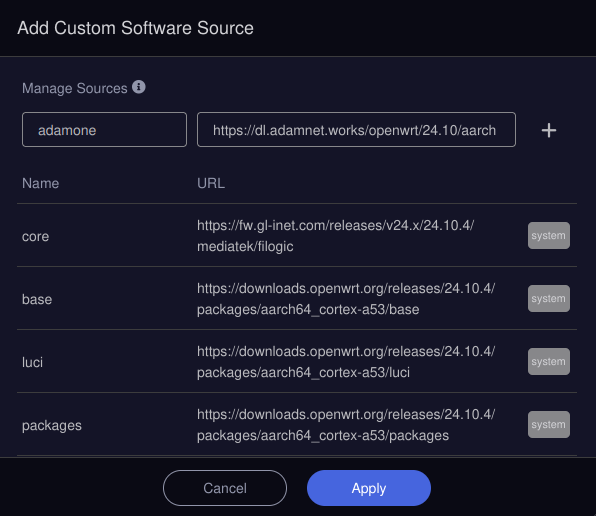
Click on Manage Sources.

-
At the top, for the name, enter: adamone
-
For the URL, enter: https://dl.adamnet.works/openwrt/24.10/aarch64_cortex-a53/packages
-
Click the + button on the right, and then click Apply.
Stage 5 of 5- Install adam:ONE® Package
-
Under Applications > Plug-ins, if the adamone package does not appear click the Refresh button. You will likely have to do this if you just added the source.
-
Enter adamone in the search box, it should appear and you can go ahead and click the install button.
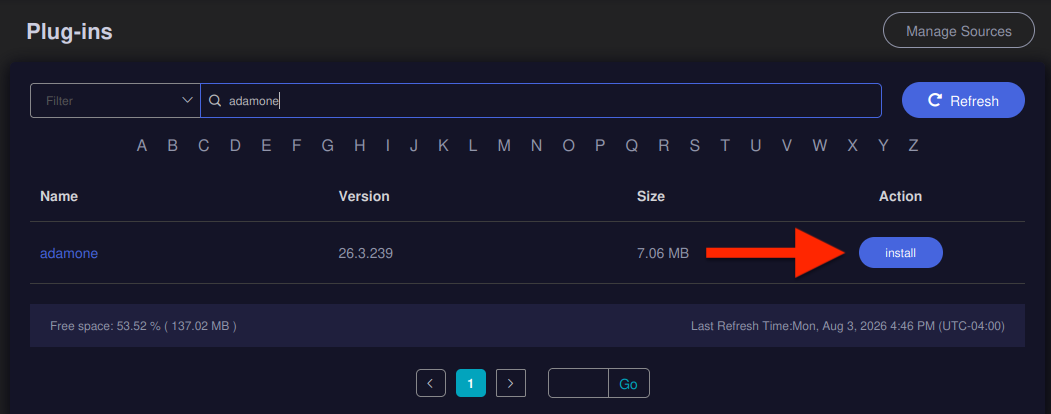
- Once the install is finished, you will see your Box ID in the succeeded dialog.
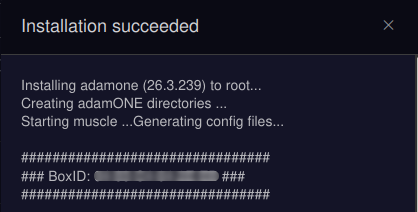
You can also always find your Box ID by looking at the label underneath your router, take the MAC, and replace the colons with dashes. For example EF:4A:A3:AF:53:32 would become EF-4A-A3-AF-53-32
You can now register your router at My Dashboard
Using LuCI (Optional)
We also integrate with the LuCI web interface.
-
From your router admin panel, go to System > Advanced Settings
-
Click “Install Now”, and then you’ll see a button “Go To LuCI”. The password will be the same as the one you have set for the default admin panel.
-
In the LuCI web interface, you will also find adam:ONE available under the Services menu.
Install on ASUS
Stage 1 of 4- Download OpenWRT 24 Firmware
The ASUS router should be running a default installation of OpenWRT 24.10.x
Firmware image accessible here:
openwrt-24.10.4-mediatek-filogic-asus_tuf-ax4200-squashfs-sysupgrade.bin
Stage 2 of 4- Add the public key
Adding the public key can be done through the LuCI web interface or over SSH
a. LuCI web interface
i. Download the public key.
ii. Go to System > Administration
iii. Select the Repo Public Keys tab.
iv. Upload the file: 60c220486f21bbeb
b. Alternatively, Over SSH
i. wget https://dl.adamnet.works/openwrt/public.key
ii. opkg-key add public.key
Stage 3 of 4- Change HTTP listener port
i. Go to System > Software and search / install luci-app-uhttpd
ii. Refresh the browser
iii. Go to Services > uHTTPd, and change the HTTP and HTTPS listener to a non-standard port
Stage 4 of 4- Install adamone package
i. Go to System > Software and click “Configure opkg…”
ii. Add and save the following line to the /etc/opkg/customfeeds.conf section:
src/gz adamone https://dl.adamnet.works/openwrt/24.10/aarch64_cortex-a53/packages
iii. Click “Update lists…” and verify that opkg update has run without error
iv. Under the Available tab, filter / search for adamone
v. Click “Install…”
vi. Observe the output window for the BoxID, and verify that the install completes without error.
vii. The install process will start the muscle
Upgrading
Upgrade on GL.iNet Routers
From GL.iNET Admin Panel
-
Go to APPLICATIONS > Plug-ins
-
From the “Filter” drop-down, select “Available Update”
-
Type “adamone” in the “Search Package” field
-
If the current adamone package is upgradeable, it will be shown
-
Click “Update”
From LuCI
-
Go to System > Software
-
Click the “Update lists..” button
-
Click on the “Updates” tab
-
If necessary, filter for “adamone”
-
If the current adamone package is upgradeable, it will be shown
-
Click “Upgrade…”
Upgrade on ASUS Routers
-
Go to System > Software
-
Click the “Update lists..” button
-
Click on the “Updates” tab
-
If necessary, filter for “adamone”
-
If the current adamone package is upgradeable, it will be shown
-
Click “Upgrade…”